Connect your REST API to ChatGPT to perform operations
MCP isn't a Claude-only protocol — it's an open spec, and ChatGPT speaks it too. The same published MCP server you'd hand to Claude works as a ChatGPT connector, with no second integration to build. Here's how to go from a REST API to ChatGPT actually calling it.
Describing an API vs. operating one
Pasting an OpenAPI spec into a custom GPT's "Actions" tab gets ChatGPT talking about your API. It doesn't get you tenant isolation, per-tool risk gating, credential brokering, or an audit trail of every call — that's request-response wiring you'd otherwise build yourself, per API, per client. The point of putting an MCP server in front of your API instead is that the governance is already there: you generate the tools once, and any MCP-speaking client — Claude, ChatGPT, Cursor, whatever shows up next — gets the same tools, the same risk classes, and the same audit log, because they're all talking to the same governed endpoint rather than to your raw API directly.
The example API
To keep this concrete, we'll reuse the small public Demo Store API used in the companion Claude walkthrough — a store with products and orders, live at https://mcpplatform.dev/demo/store/v1, no API key required. If you've already published a Demo Store MCP server from that post, skip straight to connecting it to ChatGPT — the same install URL works for both clients.
1–4. Spec in, tools out, publish
These steps are identical no matter which client will end up calling the server — the MCP endpoint you publish doesn't know or care which client connects to it:
- Sign up — you land in the console with a tenant and a default environment already provisioned.
- API Contracts → Upload OpenAPI — paste the spec (grab it at /demo-store-openapi.json) or point at a URL. Review the validation report.
- Generate tools — select the operations; each one becomes a tool named from its operationId, with a risk class derived from its HTTP method (GET → low, DELETE → high, other writes → medium). For the Demo Store spec that's list_products/get_product/get_order at low, create_order at medium, and cancel_order at high.
- Create an MCP server (boundary public for this demo), attach the generated tools, and publish version 1.0.0. You get back a live endpoint:
That's a standard MCP Streamable-HTTP JSON-RPC 2.0 endpoint (initialize, tools/list, tools/call) — the same shape every MCP client, including ChatGPT, expects to talk to. For the full step-by-step with screenshots-in-prose of each console screen, see Connect Your First API.
5. Add it to ChatGPT as a connector
ChatGPT supports adding remote MCP servers as connectors, separately from the OpenAPI-based "Actions" used by custom GPTs:
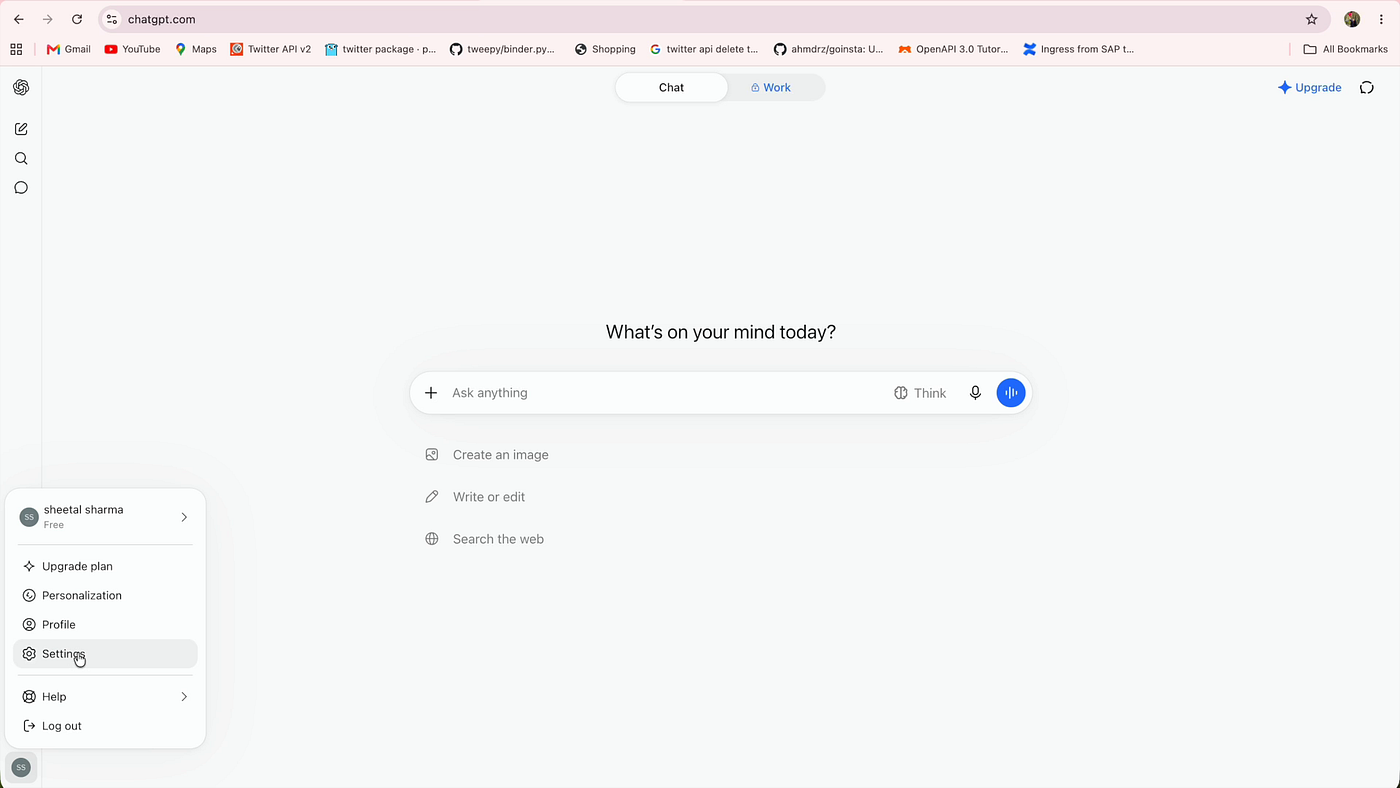
- In ChatGPT, open Settings → Plugins.
- Go to Browse plugins.
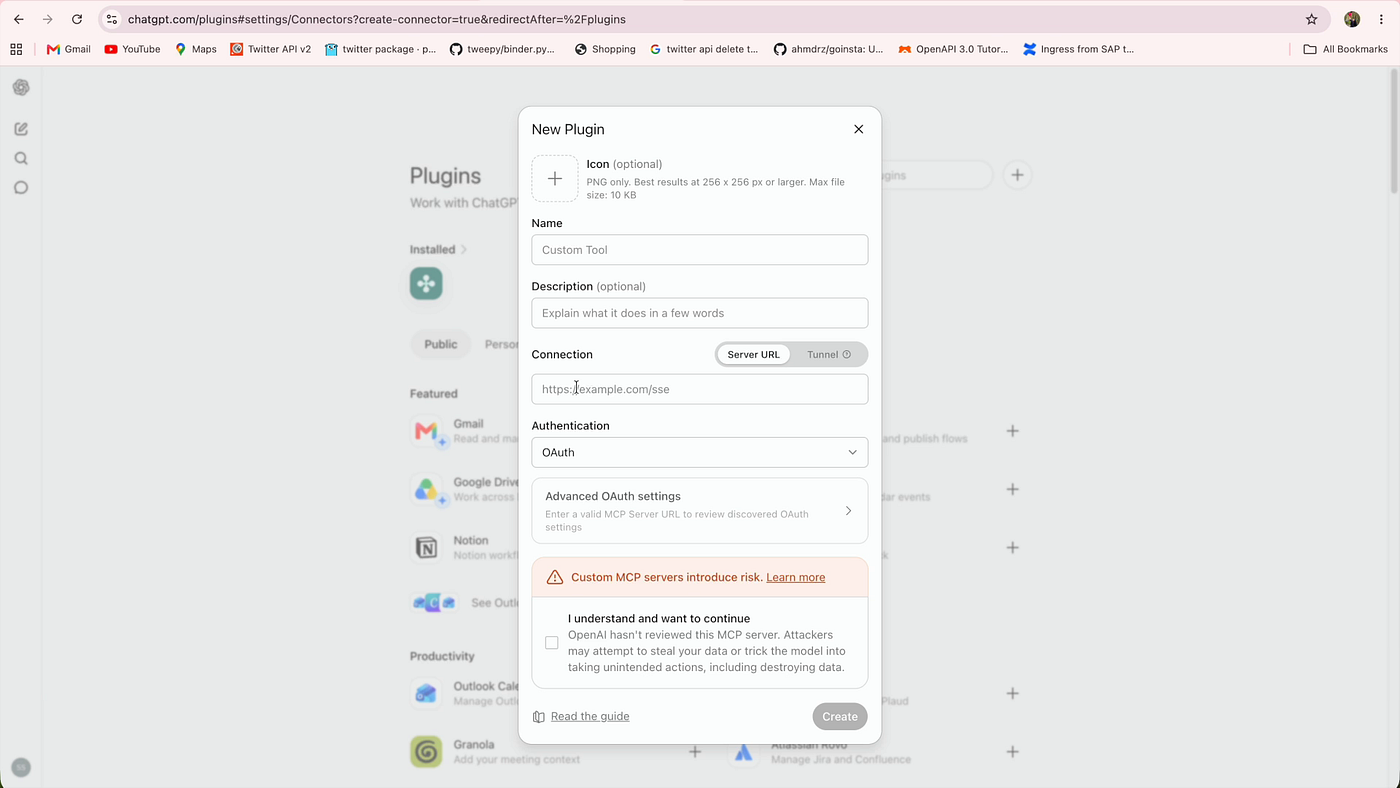
- Create a custom MCP app and provide your server's install URL from the previous step.
- Name it Demo Store, leave it without authentication (the Demo Store needs no credentials — for a private upstream, this is where you'd point ChatGPT at the OAuth details you configured in Credentials → Add OAuth provider instead), and create it.
- ChatGPT connects and automatically discovers the tools exposed by the server — you'll see cancel_order, create_order, get_order, get_product, and list_products listed for the plugin.
6. Have it actually perform operations
With the plugin connected, ask ChatGPT to use it — no simulation here, this is a real HTTP call from ChatGPT to the MCP server and from there to the Demo Store API:
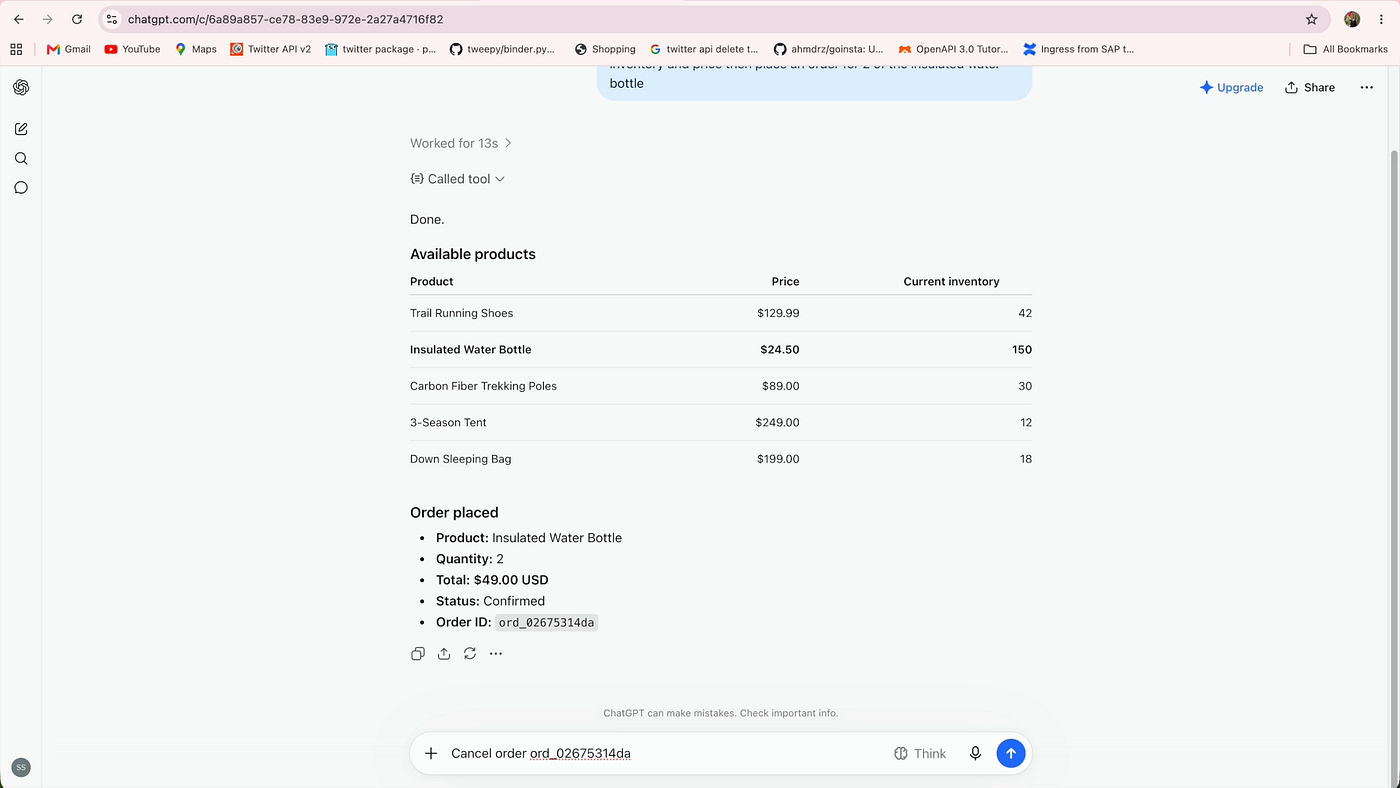
ChatGPT may first ask you to allow it to use the Demo Store plugin. Once allowed, it works out that it needs to find the right product, so it calls list_products — the response is the real catalog from the Store API, and the Insulated Water Bottle's id is prod_002. ChatGPT then calls create_order with {"productId": "prod_002", "quantity": 2}, and the confirmed order comes back with an order id, product info, quantity, total price, and status: "confirmed" — a complete live round trip: ChatGPT called the MCP tool, the MCP server called the Store API, and the real response came back into the conversation.
Now say "Now cancel that order." ChatGPT understands the context, picks out the order id from what you just created, and calls cancel_order — the tool flagged high risk back in step 1, because it maps to a DELETE. In production, this is exactly where you'd add an approval step or stronger controls before the call executes; this public demo lets it continue so you can see the full round trip. The cancel request goes through and the same order comes back with status: "cancelled" — again not mocked: the MCP tool made a real HTTP request, the Store API updated the order, and ChatGPT displayed the result.
Why you only did this once
Nothing about steps 1–4 mentioned ChatGPT. That's the actual point: the contract-to-tools-to-published-server pipeline, the risk classification, and the audit trail are all client-agnostic, because they live on the MCP server, not in a per-client integration. Add Cursor or another MCP-speaking agent later and it's the same install URL again, not a new build.
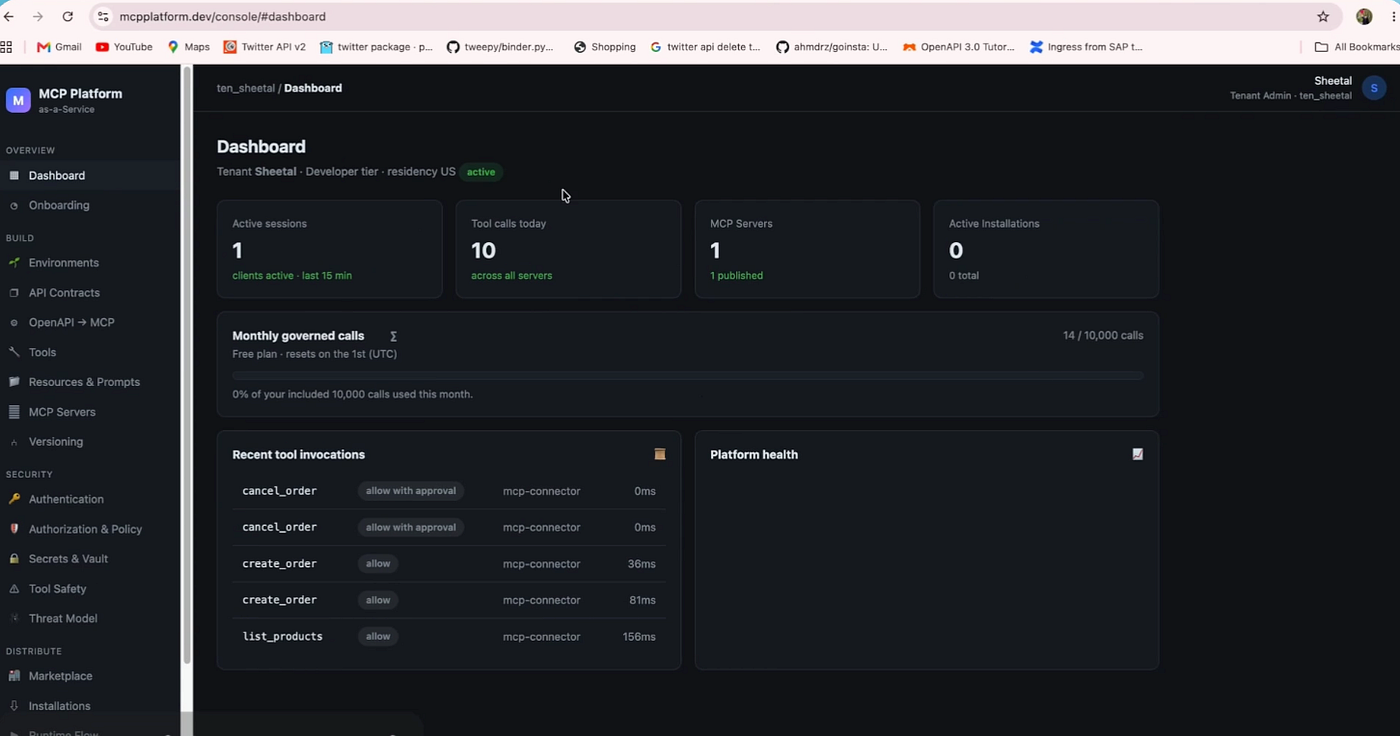
Every one of those calls — list_products, create_order, the cancel_order that needed a closer look — shows up back on the MCP server's own dashboard, with latency and the approval decision that was applied, regardless of which client made the call:
A version of this walkthrough is also cross-posted on Medium. The canonical copy — kept current as the platform changes — lives at mcpplatform.dev.